|
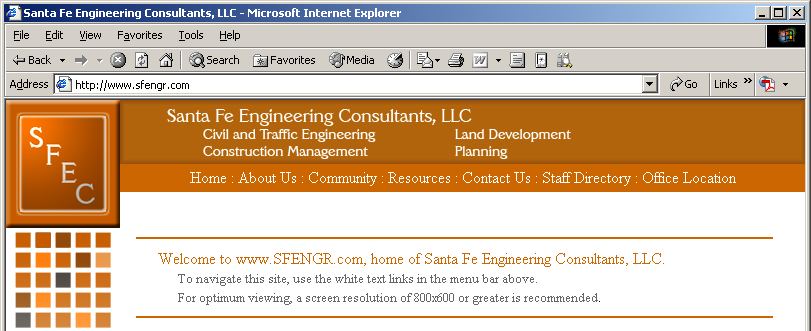
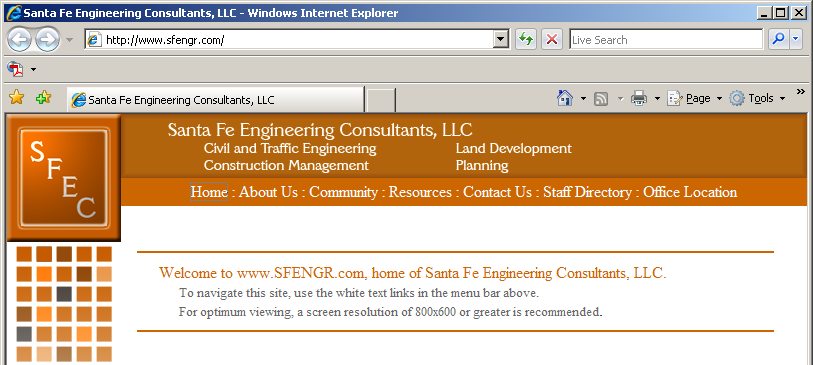
Please verify the web browser that you are using.
Internet Explorer 6 looks like this:
Internet Explorer 7 looks like this:
Please note that other web browsers such as FireFox, Netscape, AOL, or Safari may be compatible for downloading files, but not uploading files.
SFEC does not offer technical support for these programs. Use these at your own risk.
 Instructions for Internet Explorer 6 users
- From Santa Fe Engineering's website, click on the resources tab.
-
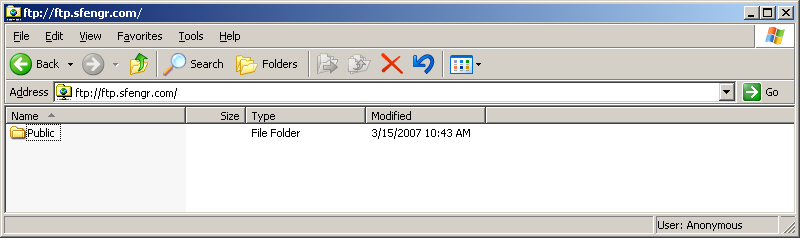
Click on the 'SFEC FTP Site' link. This should open in a standard Windows Explorer window:
-
You are automatically logged in as an Anonymous user. You should only see a 'Public' folder.
(If you only need Anonymous access, proceed to step 6. Otherwise, proceed to step 4)
-
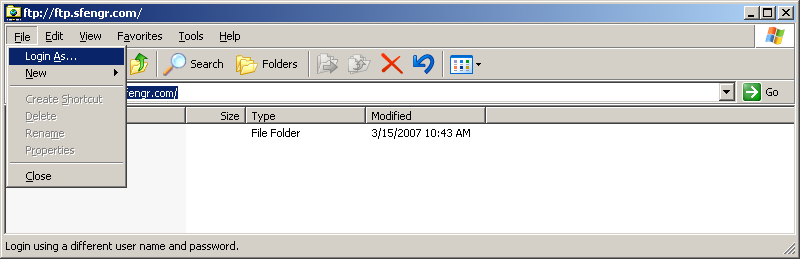
If you were given an account and password, click the File pulldown menu in the upper-left corner of the screen,
then click on 'Login As':
-
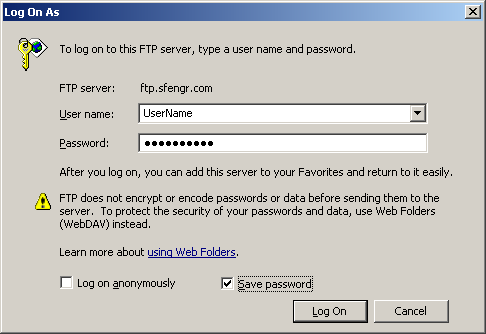
From here you will see the Login Dialog box. Enter in your provided login name and password.
If you will be visiting the FTP site regularly, it is recommended that you click the 'Save Password' check box:
-
Double-click on the folder that was assigned to you. From here, file transfers are as simple as 'drag and drop'.
Instructions for Internet Explorer 7 users
- From Santa Fe Engineering's website, click on the resources tab.
-
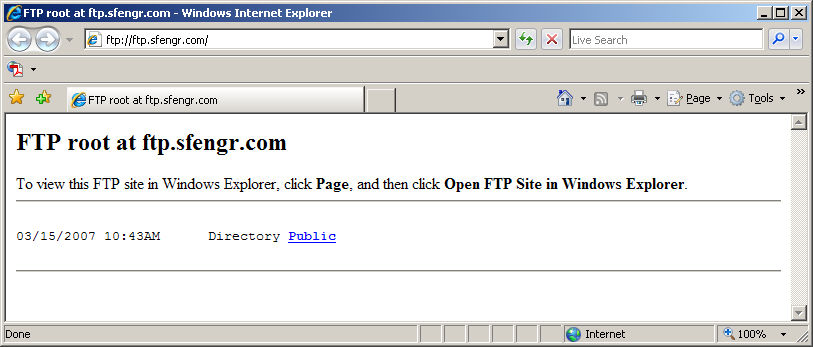
Click on the 'SFEC FTP Site' link. This will open in a new Internet Explorer window that looks like this:
-
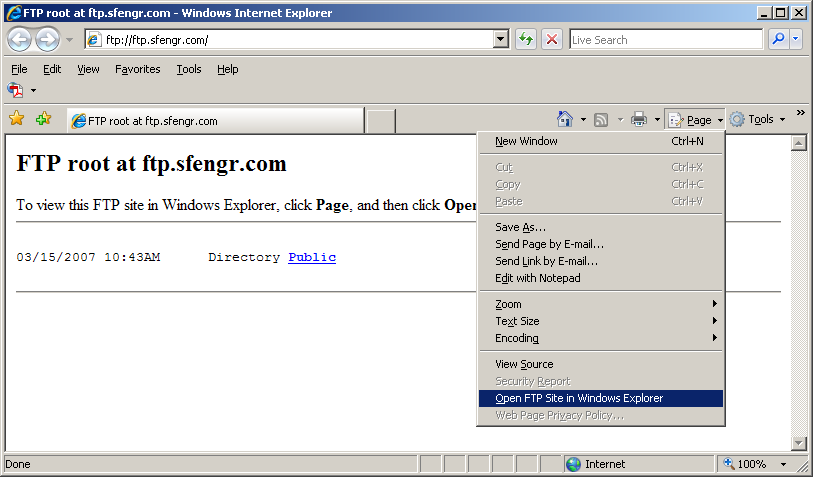
In the upper-right corner of the window, click on the Page pulldown menu, then click 'Open FTP Site in Windows Explorer':
-
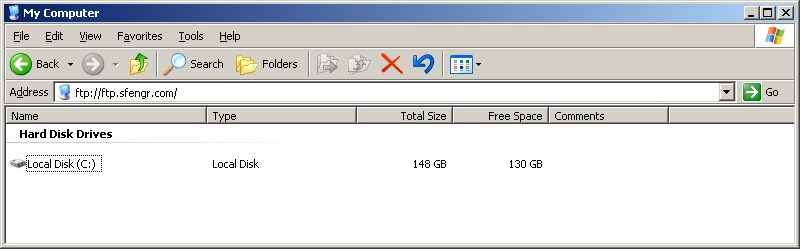
You are automatically logged in as an Anonymous user. You should only see a 'Public' folder.
(If you only need Anonymous access, proceed to step 7. Otherwise, proceed to step 5)
-
If you were given an account and password, click the File pulldown menu in the upper-left corner of the screen, then click on 'Login As':
-
From here you will see the Login Dialog box. Enter in your provided login name and password. If you will be visiting the FTP
site regularly, it is recommended that you click the 'Save Password' check box:
-
Double-click on the folder that was assigned to you. From here, file transfers are as simple as 'drag and drop'.
|